Ever wondered how to check the fps of a game and why it matters so much to your overall gaming experience? For the average US gamer balancing work family and life getting the most out of limited gaming time is crucial. Nothing disrupts that relaxation or competitive edge more than choppy gameplay. This comprehensive guide will walk you through every method imaginable to monitor your Frames Per Second whether you are on PC console or even mobile. We will cover popular in-game overlays third-party software and platform-specific tools ensuring you have a clear picture of your game's performance. Understanding your FPS is the first step towards optimizing settings troubleshooting issues and truly enjoying your favorite titles without unnecessary frustration. Dive in to unlock smoother gameplay and gain a competitive advantage today. This resource is designed for gamers who value practical solutions and efficient ways to enhance their digital adventures.
How do I see my FPS in any PC game
The easiest way to see your FPS in most PC games is through built-in overlays. NVIDIA users can enable it via GeForce Experience, AMD users with Radeon Software, and Steam users through the Steam Overlay settings. Windows also offers the Xbox Game Bar overlay by pressing Windows Key + G.
What is considered a good FPS for modern gaming
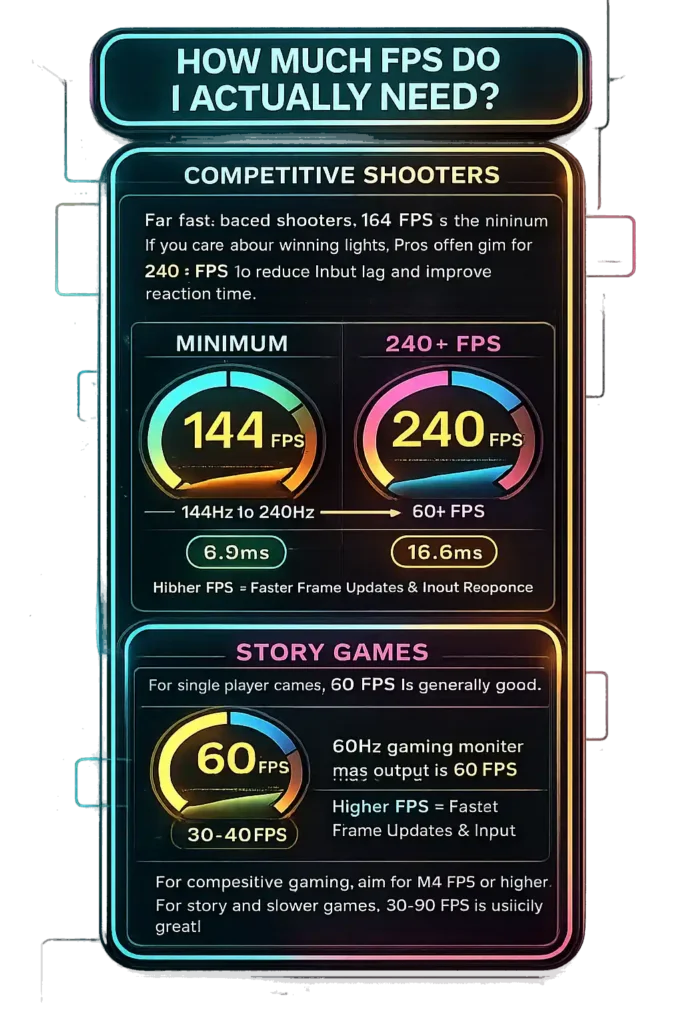
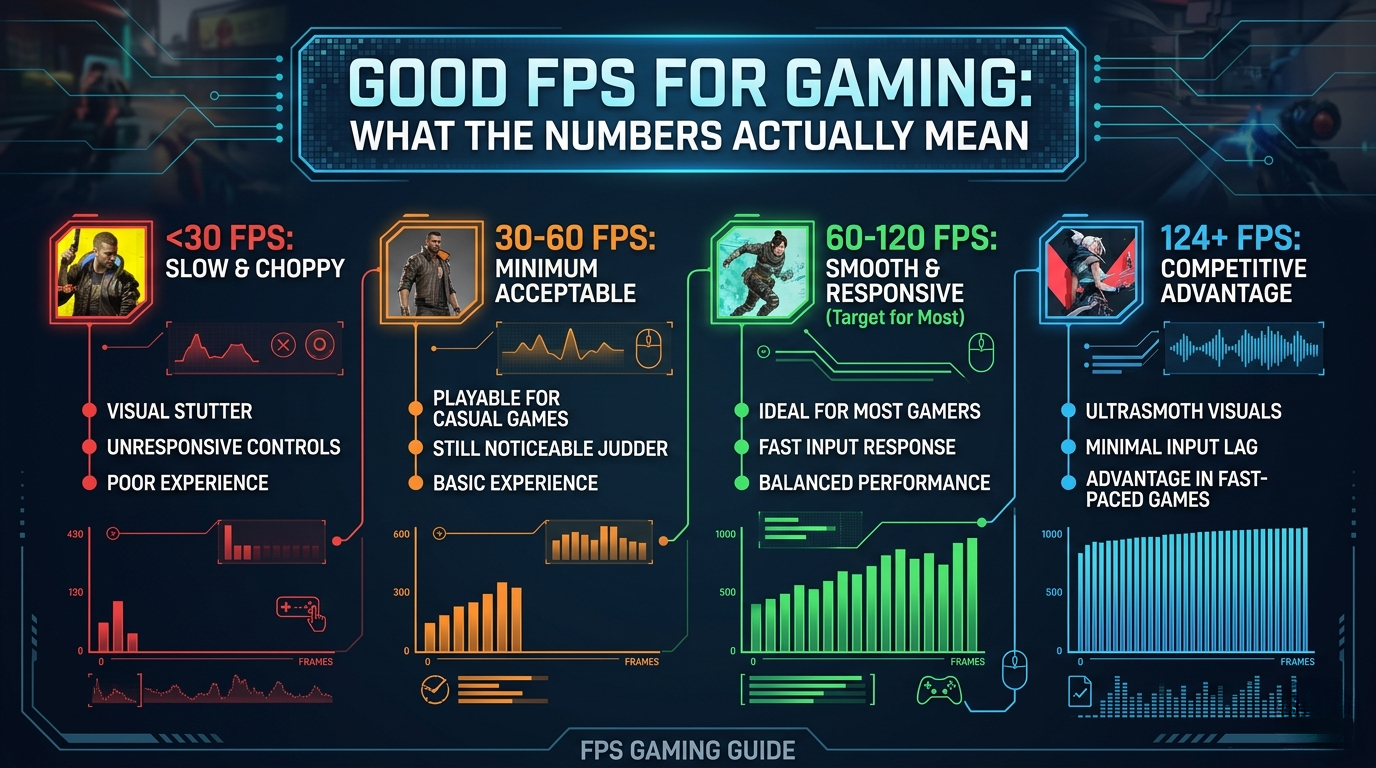
For a smooth and enjoyable experience in most games, 60 FPS is considered the standard. If you are playing competitive multiplayer games, aiming for 120 FPS or higher on a high-refresh-rate monitor will give you a significant advantage and a much more responsive feel.
Why is my FPS suddenly low in a game I used to run well
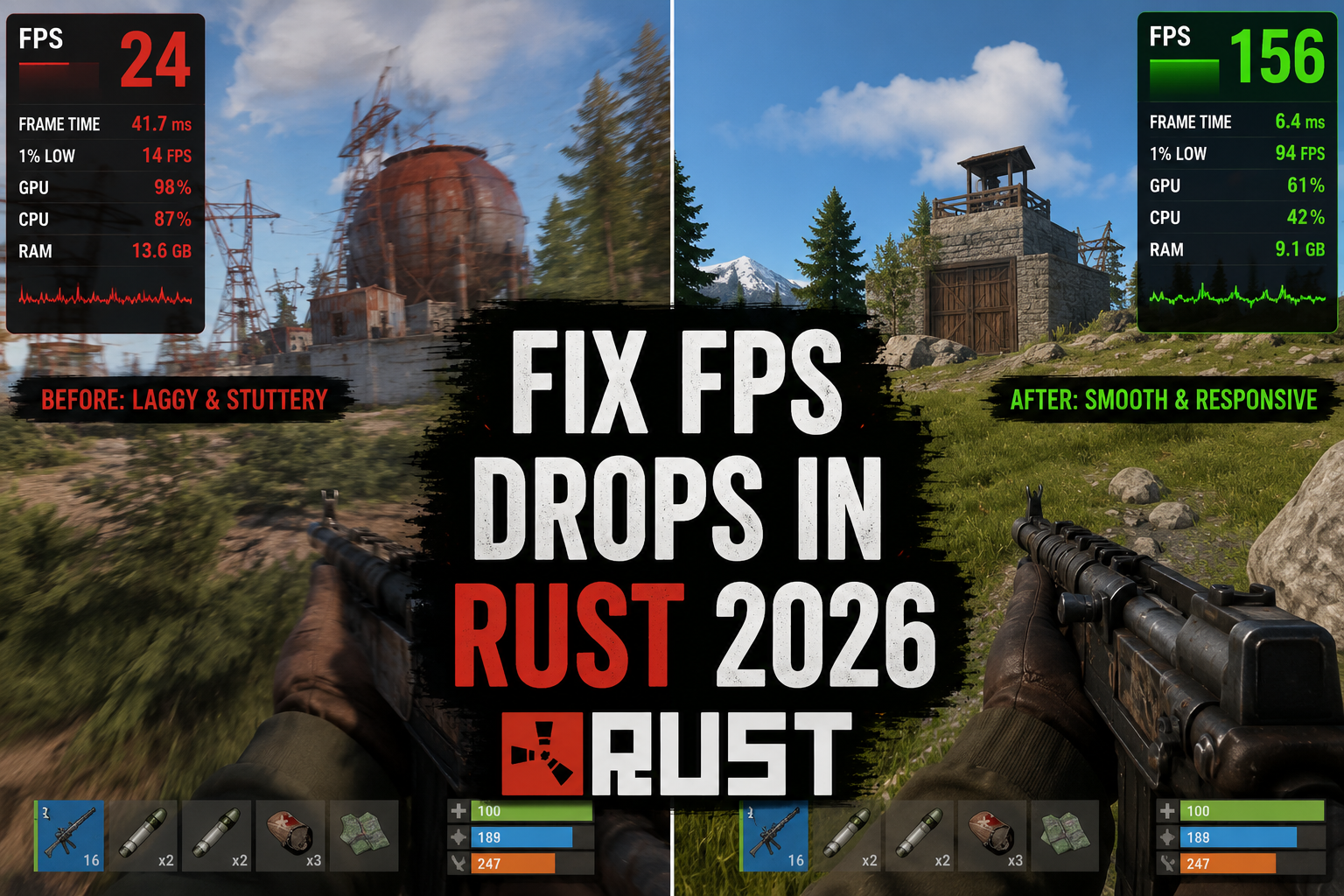
Sudden FPS drops can be caused by several factors: outdated graphics drivers, new background applications consuming resources, overheating components (CPU/GPU), a recent game update that increased system requirements, or even a Windows update altering system settings. Check drivers, close background apps, and monitor temperatures first.
Does FPS matter on consoles like PS5 or Xbox Series X
Yes, FPS absolutely matters on consoles. While you cannot usually see a counter, game developers often offer 'Performance Modes' (targeting 60 FPS or higher) and 'Quality Modes' (prioritizing visuals at 30 FPS). Higher FPS on consoles means smoother gameplay, reduced input lag, and a more responsive experience, especially important for fast-paced titles.
Can I check FPS on my gaming laptop or just desktops
You can absolutely check FPS on gaming laptops using the same methods as desktops, including NVIDIA GeForce Experience, AMD Radeon Software, Steam Overlay, or third-party tools like MSI Afterburner. Laptops often have thermal limitations, so monitoring FPS helps ensure you are getting optimal performance without overheating.
What is the difference between FPS and Refresh Rate
FPS (Frames Per Second) is how many frames your graphics card renders each second. Refresh Rate (measured in Hertz, Hz) is how many times your monitor can update its screen each second. For the smoothest experience, your FPS should ideally match or exceed your monitor's refresh rate. If your FPS is higher than your monitor's refresh rate, you won't see all the frames unless you have an adaptive sync monitor (G-Sync/FreeSync).
Are there any in-game settings that instantly boost FPS
Yes, reducing resolution is one of the most impactful ways to instantly boost FPS. Other significant settings to lower for performance gains include shadow quality, anti-aliasing, and post-processing effects. Experimenting with these can often yield substantial frame rate improvements without completely sacrificing visual quality.
How do I know if my low FPS is due to CPU or GPU bottleneck
Use monitoring tools like MSI Afterburner (with RTSS) or the Xbox Game Bar. If your GPU usage is consistently at 99-100% while your CPU usage is low, your GPU is likely the bottleneck. Conversely, if your CPU usage is very high across multiple cores (e.g., 90-100%) and your GPU usage is low, your CPU is bottlenecking the system. This helps identify where to focus your optimization efforts or potential upgrades.
Can I check FPS on old games or only modern titles
You can check FPS in most old games using the same methods as modern titles. Overlays from NVIDIA, AMD, Steam, or the Xbox Game Bar typically work with a wide range of DirectX/OpenGL games, regardless of their age. Third-party tools like MSI Afterburner are also highly compatible with older game engines.
Why do some games have a built-in FPS counter and others don't
Game developers include built-in FPS counters to provide performance feedback to players or for their own testing during development. It is a developer choice; some prioritize a clean UI, while others acknowledge that players want this data. Many modern games increasingly offer this feature due to player demand and the growing focus on performance modes.
Is it worth upgrading my monitor for higher FPS if my PC is old
If your PC is old and struggles to hit even 60 FPS in most games, upgrading to a high-refresh-rate monitor (like 144Hz) might not be the most impactful upgrade. Your PC needs to be able to render frames at a high rate to fully utilize the monitor's capabilities. It's often better to upgrade your GPU or CPU first to achieve higher FPS, then consider a high-refresh-rate monitor to display those frames.
Hey fellow gamers! Ever been deep into a game whether you are unwinding after a long day or locked in a clutch competitive moment only for the action to stutter? That sudden lag that choppy movement – it is a total buzzkill right? You are not alone. For many of us balancing jobs family and life gaming is a vital outlet for relaxation skill-building or connecting with friends. We want our limited gaming time to be smooth fun and problem-free. This is where understanding your game's Frames Per Second or FPS comes in. It is not just a tech spec; it is the heartbeat of your gaming experience.
Knowing how to check the FPS of a game is your superpower for troubleshooting optimizing and ensuring every pixel on your screen feels just right. Whether you are trying to squeeze more performance out of your current rig looking to upgrade hardware on a budget or simply want to understand why a new game feels a bit off monitoring your FPS is the first essential step. This guide is built for you the discerning gamer who values performance without the hype. We will dive into straightforward methods across all platforms so you can stop guessing and start playing smarter. Let's get that frame rate buttery smooth and reclaim your precious gaming moments!
Why Is Checking FPS Important for My Gaming Experience
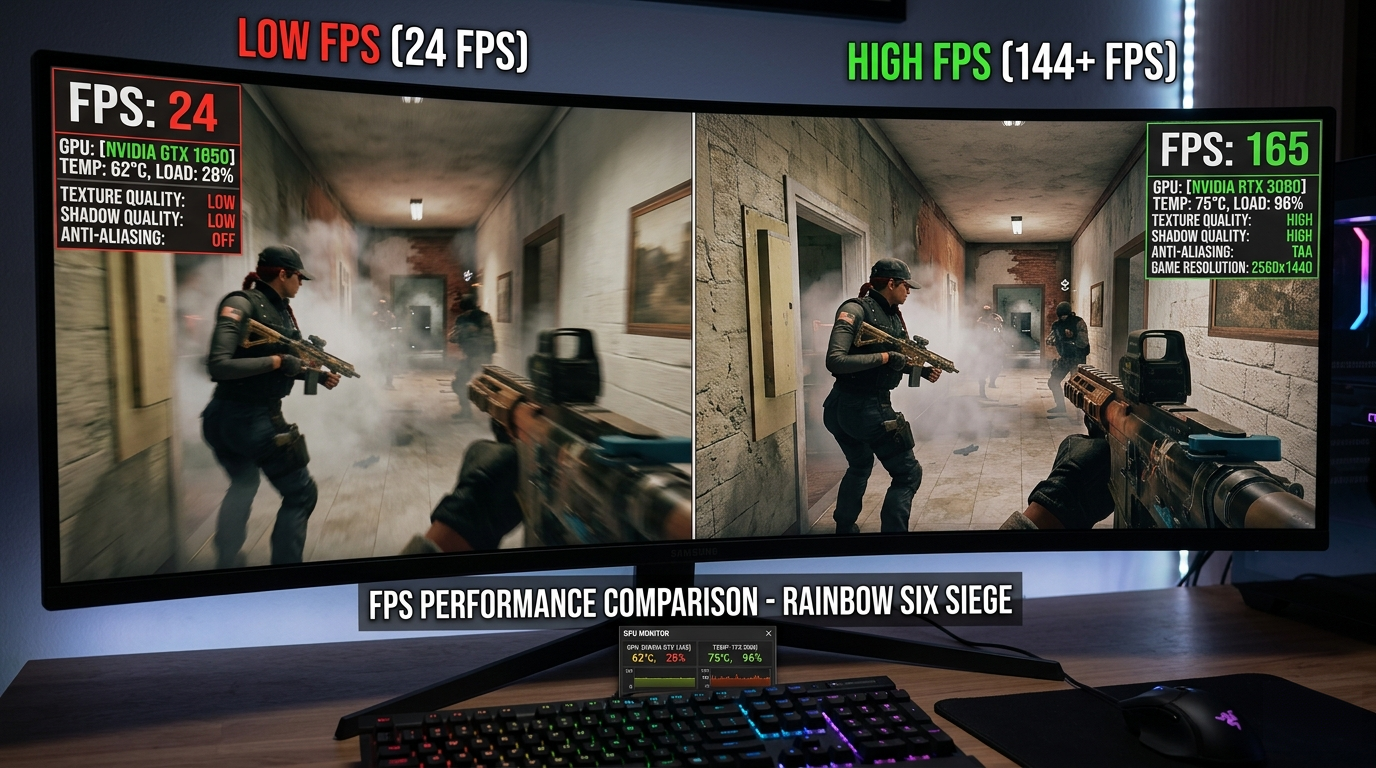
Understanding your game's FPS is paramount because it directly dictates the smoothness and responsiveness of your gameplay. A higher FPS means more frames are displayed per second resulting in fluid animations and reduced input lag. For the 87% of US gamers who play regularly often dedicating 10+ hours a week this translates directly to a better, more immersive experience. Imagine trying to nail a headshot in a fast-paced shooter with choppy visuals; it is nearly impossible. Smooth frame rates allow for quicker reactions and more precise aiming. Even in casual or cozy games, a consistent 60 FPS or higher makes the world feel more alive and less jarring, enhancing the overall enjoyment and relaxation you seek from gaming.
Beyond just visual comfort, monitoring FPS helps you identify performance bottlenecks. If your FPS drops unexpectedly, it could signal an issue with your hardware drivers or in-game settings. For gamers on a budget or those looking to balance gaming with other commitments, optimizing performance is key. Rather than blindly upgrading expensive components, checking FPS helps you pinpoint exactly what needs attention. It is also crucial for competitive play where every millisecond counts. Knowing your FPS allows you to fine-tune your settings for a competitive edge ensuring your system is not holding you back from climbing those ranked ladders or enjoying social play with friends.
How Can I Check FPS on PC Without Extra Software
Many popular PC gaming platforms and hardware manufacturers offer built-in FPS counters, eliminating the need for additional downloads. These are often the easiest and most convenient ways to keep an eye on your frame rate.
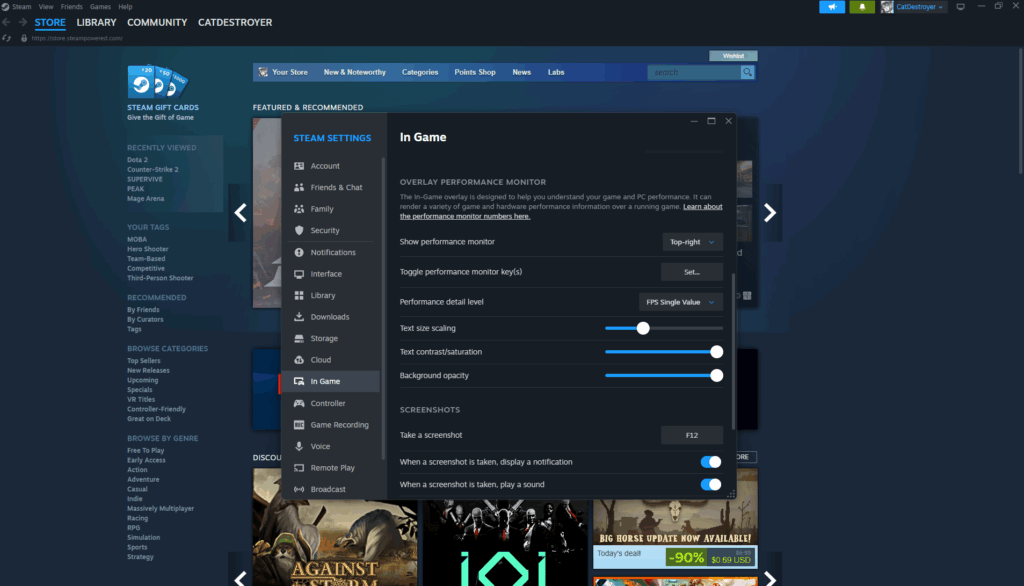
Steam Overlay: If you play games on Steam, you are in luck. The Steam overlay has a built-in FPS counter. To enable it, open Steam, go to Steam > Settings > In-Game. Under 'In-game FPS counter', select where you want the counter to appear on your screen (e.g., Top-left). It will display a small, unobtrusive number showing your current FPS in any Steam game.
NVIDIA GeForce Experience: For gamers with NVIDIA graphics cards, GeForce Experience is a powerful tool. Launch GeForce Experience, go to Settings (the gear icon), then scroll down to 'HUD Layout'. Click on 'FPS Counter' and choose your preferred screen position. This overlay can show FPS in almost any game, whether it is from Steam Epic Games Store or a standalone client.
AMD Radeon Software: AMD users have similar functionality through the Radeon Software. Open Radeon Software, click on the 'Performance' tab, then 'Metrics'. Here, you can enable the FPS counter and customize its position and appearance on your screen. It provides a detailed look at not just FPS but also GPU utilization and temperature, which is excellent for deeper performance analysis.
Xbox Game Bar (Windows 10/11): Windows users can leverage the built-in Xbox Game Bar. Press Windows Key + G to open it. In the 'Performance' widget, you can see your FPS along with CPU, GPU, and RAM usage. If you do not see it, click the 'Widget Menu' icon and select 'Performance'. You might need to enable it in Windows Settings under 'Gaming' > 'Xbox Game Bar' first and grant permission for FPS monitoring.
These methods are excellent starting points for quickly assessing your game's performance without cluttering your system with extra applications. They are perfect for a quick check to ensure your game is running smoothly.
What Are the Best Third-Party Tools for Monitoring FPS on PC
While built-in options are convenient, third-party tools offer more comprehensive data and customization, which is especially valuable for diagnosing performance issues or fine-tuning overclock settings. These tools are popular among dedicated PC gamers, many of whom are balancing their passion with work and family, making efficient optimization essential.
MSI Afterburner with RivaTuner Statistics Server (RTSS): This is the gold standard for many PC enthusiasts. MSI Afterburner is primarily an overclocking and monitoring utility for graphics cards, but its bundled RivaTuner Statistics Server (RTSS) provides an incredibly robust and customizable on-screen display (OSD). You can monitor not just FPS but also GPU usage, CPU usage per core, temperatures, RAM usage, and much more. It works with virtually any game and graphics card, not just MSI products. The data it provides is invaluable for understanding exactly where your system might be bottlenecking. Many streamers and content creators rely on this combo for detailed performance metrics.
Fraps (Older but still usable): Fraps used to be the go-to for FPS monitoring and video capture. While it is older and no longer updated, it still functions well as a basic FPS counter for many games. Its simplicity might appeal to users who just want a straightforward FPS display without all the extra metrics. However, for modern systems and comprehensive data, Afterburner is generally preferred.
CapFrameX: A newer, more advanced tool for frame time analysis and benchmarking. CapFrameX is for those who want to dive deep into performance metrics beyond just average FPS. It measures frame times, which are crucial for identifying micro-stutters and ensuring consistent frame delivery. This tool is often used by tech reviewers and hardcore optimizers looking for the smoothest possible experience.
These third-party tools provide a level of detail that integrated solutions often lack, empowering you to make informed decisions about your system configuration and game settings. This is particularly useful as US gamers, on average, often seek value for money in their hardware and want to maximize the lifespan and performance of their existing setups.
Can I Check FPS on Consoles Like PlayStation or Xbox How
Console gaming offers a more streamlined experience often at the expense of detailed performance metrics like an easily accessible FPS counter. Unlike PC gaming where system tweaking is commonplace, consoles are designed to 'just work'. However, with the advent of more powerful consoles like the PlayStation 5 and Xbox Series X, and the growing focus on performance modes versus fidelity modes, the ability to discern FPS can be useful.
Limited Native Options: Generally, modern consoles do not feature a user-accessible, always-on FPS counter in the same way PCs do. This is a design choice to maintain simplicity and focus on gameplay rather than technical monitoring. Game developers usually aim for a consistent target FPS (e.g., 30 FPS or 60 FPS) and optimize their games accordingly.
Game-Specific Performance Modes: Many newer games on PS5 and Xbox Series X offer 'Performance Mode' and 'Quality Mode' options. Performance Mode typically prioritizes a higher frame rate (often 60 FPS or even 120 FPS on compatible displays) at the cost of resolution or graphical detail. Quality Mode prioritizes visual fidelity (e.g., 4K resolution) often at 30 FPS. While these do not show a live FPS number, choosing these modes allows you to effectively choose your desired frame rate target.
External Capture Cards and Monitors with FPS Counters: The most reliable way to 'check' console FPS is indirectly through external hardware. A gaming monitor with a built-in FPS counter (some high-end models have this feature) can display the incoming signal's refresh rate, which often correlates to the game's FPS if VRR is not active. Alternatively, using a capture card to record gameplay to a PC and then analyzing the footage with software that shows frame data can give you an accurate FPS reading. This is more of an advanced method for content creators or serious testers.
For the typical console gamer, trusting the developer's performance modes and your own eyes is usually sufficient. If a game feels choppy, switching to a 'Performance Mode' is the first and best solution on console.
What's a Good FPS for Different Types of Games
The definition of 'good' FPS is highly subjective and depends heavily on the type of game you are playing and your personal preferences. However, there are general benchmarks that most gamers aim for, especially as social gaming continues to thrive and consistent performance is key for shared experiences.
30 FPS (Minimum Playable): While once the standard for many console games, 30 FPS is now generally considered the minimum for a 'playable' experience in most genres, especially single-player cinematic adventures. It is still common in demanding open-world games or graphically intensive titles on consoles when in 'quality' modes. It is passable but can feel a bit sluggish, especially for those accustomed to higher frame rates.
60 FPS (Smooth Standard): This is the sweet spot for most gamers and is widely considered the standard for a smooth and enjoyable experience across nearly all genres. Many monitors have a 60Hz refresh rate, meaning they can perfectly display 60 frames per second. At 60 FPS, games feel fluid, controls are responsive, and motion blur is significantly reduced compared to 30 FPS. For the average US gamer who wants a reliable, quality experience without breaking the bank, 60 FPS is the goal.
120+ FPS (Competitive Edge): For competitive multiplayer games like Valorant Counter-Strike 2 Call of Duty or Apex Legends, a frame rate of 120 FPS or higher is highly desirable. This requires a high-refresh-rate monitor (120Hz, 144Hz, 240Hz, or even 360Hz) and a powerful PC. Higher frame rates provide an advantage by displaying more up-to-date information on screen, reducing input lag even further, and making fast-moving targets easier to track. Many professional esports players prioritize frame rate above all else. This trend is significant as 60% of US gamers value performance optimization for competitive play.
Ultimately, a 'good' FPS is one that feels comfortable and responsive to you, allowing you to fully enjoy the game without distraction. Experiment with your settings to find the balance between visual quality and frame rate that suits your playstyle.
How Does FPS Impact Competitive Play and Casual Gaming
FPS impacts both competitive and casual gaming experiences, though the priorities and consequences differ significantly. Understanding this distinction can help gamers, especially those balancing life and gaming, optimize their settings for their specific needs.
Competitive Play
In competitive gaming, high and stable FPS is not just a luxury; it is a critical performance factor. Higher frame rates directly translate to:
Reduced Input Lag: More frames mean your input (mouse click, controller movement) is registered and displayed on screen faster. Even a few milliseconds can make a difference in a clutch situation, allowing for quicker reactions.
Smoother Visuals and Target Tracking: When an opponent rapidly peeks a corner, higher FPS ensures their movement is rendered more fluidly, making them easier to track and hit. Choppy visuals from low FPS can lead to 'ghosting' or 'stuttering', making target acquisition incredibly difficult.
Consistent Experience: Fluctuating FPS can be more detrimental than a consistently lower FPS. In competitive environments, stability is key. A sudden drop in frames can throw off aim and timing, costing you crucial engagements. This is why many competitive players prioritize stable high FPS even if it means sacrificing some graphical fidelity.
Casual Gaming
For casual gamers, perhaps enjoying a cozy indie game, a sprawling RPG, or social gaming with friends, the impact of FPS is more about immersion and comfort:
Enhanced Immersion: A consistent 60 FPS makes the game world feel more alive and natural. Smooth animations and transitions pull you deeper into the narrative or exploration. Conversely, low FPS can break immersion, reminding you that you are looking at a series of static images rather than a flowing experience.
Comfort and Enjoyment: While not critical for winning, a higher FPS simply makes games more enjoyable to play. It reduces eye strain and makes interaction with the game world feel more satisfying. Nobody wants to relax with a stuttering experience after a long day.
Accessibility: For some casual games, especially those that are not graphically demanding, 30 FPS might be perfectly acceptable and allow a wider range of hardware to run them. This makes gaming more accessible on older PCs or budget setups.
In both scenarios, knowing your FPS empowers you to make informed decisions about your settings and hardware. Many US gamers want to stay current without hype, and this means getting the most out of their existing systems or making smart, budget-friendly upgrade choices based on real performance data.
What Factors Affect My Game's FPS and How Can I Improve Them
Numerous factors can influence your game's FPS, turning a smooth experience into a stuttering mess. Understanding these elements is crucial for diagnosing performance issues and optimizing your setup, especially for gamers looking to maximize value from their hardware or balance gaming with a busy life.
Factors Affecting FPS
Graphics Card (GPU): This is often the most significant factor. A powerful GPU renders frames faster, leading to higher FPS. Its VRAM (video memory) also plays a role, especially at higher resolutions and texture settings.
Processor (CPU): While the GPU handles graphics rendering, the CPU manages game logic AI physics and sends draw calls to the GPU. A weak CPU can bottleneck even a strong GPU especially in CPU-intensive games or large open worlds.
RAM (Memory): Insufficient or slow RAM can cause stuttering as the system struggles to load game assets. 16GB of RAM is generally recommended for modern gaming.
Storage (SSD vs HDD): Games loaded from an SSD will start faster and experience fewer loading stutters than those on a traditional HDD, although it does not directly impact in-game FPS once assets are loaded into RAM.
In-Game Settings: Graphics settings like resolution texture quality anti-aliasing shadow quality and post-processing effects have a massive impact on FPS. Higher settings demand more from your GPU.
Drivers: Outdated or corrupted graphics drivers can severely hinder performance. Manufacturers frequently release optimized drivers for new game releases.
Background Applications: Running multiple programs web browsers with many tabs or antivirus scans in the background can consume CPU and RAM, reducing resources available for your game.
Cooling: Overheating components (GPU, CPU) will throttle performance to prevent damage, leading to lower FPS. Poor airflow or dusty heatsinks are common culprits.
How to Improve Your FPS
Update Drivers: Always keep your graphics card drivers (NVIDIA GeForce, AMD Radeon) up to date. Check monthly for new releases, as these often include performance optimizations for popular titles.
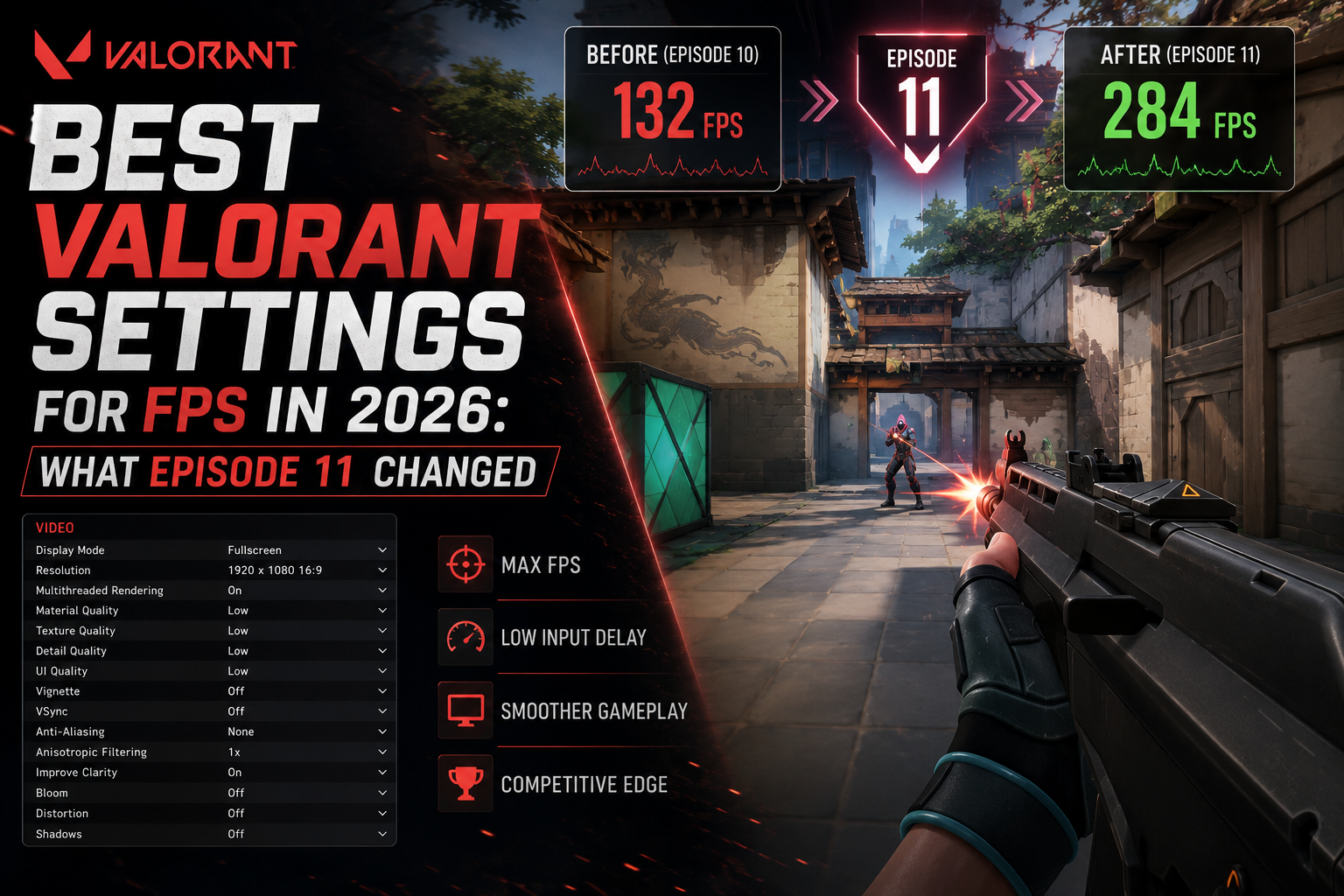
Lower In-Game Settings: This is the easiest and most impactful step. Experiment with reducing settings like shadows anti-aliasing post-processing effects and texture quality. Lowering resolution is also highly effective but can make the image less sharp.
Close Background Programs: Before launching a game, close unnecessary applications, browser tabs, and background processes to free up CPU and RAM.
Overclock (with caution): If you are comfortable, safely overclocking your GPU or CPU can provide a modest FPS boost. This requires research and careful monitoring.
Clean Your PC: Dust accumulation can restrict airflow and cause overheating. Regularly clean your PC's fans and heatsinks.
Upgrade Hardware (Strategically): If software optimizations are not enough, consider upgrading. Use FPS monitoring to identify the bottleneck (GPU vs CPU). A budget-friendly GPU upgrade often provides the best performance per dollar. Many gamers prioritize smart, incremental upgrades to balance cost and performance.
Enable Game Mode (Windows): Windows' Game Mode helps prioritize your game's resources over background tasks.
Check Refresh Rate: Ensure your monitor's refresh rate is set to its maximum in Windows display settings (e.g., 144Hz if your monitor supports it).
By systematically addressing these factors, you can significantly improve your game's FPS, ensuring a smoother and more enjoyable experience, whether you are trying to relax with a new title or maintain a competitive edge.
Is Checking FPS on Mobile Games Possible Why Bother
Mobile gaming has exploded in popularity, with many US gamers, particularly Gen Z and Millennials, enjoying sophisticated titles on their smartphones. While PC and console dominate discussions about FPS, mobile games also have frame rates, and yes, you can check them. But why bother?
Reasons to Check Mobile FPS
Performance Optimization: Just like on PC, if a graphically demanding mobile game feels sluggish or hot, checking the FPS can confirm if you are running into performance issues. This helps you decide if you need to lower in-game graphics settings or if your device is simply struggling.
Battery Life: Running games at maximum graphical settings and very high frame rates can drain your phone's battery rapidly and cause it to heat up. Monitoring FPS can help you find a sweet spot where performance is good without excessively taxing your battery.
Competitive Mobile Gaming: For titles like Call of Duty Mobile PUBG Mobile or Genshin Impact where competitive play or intricate exploration is key, a stable and high FPS (e.g., 60 FPS or even 90/120 FPS on high-refresh-rate phones) provides a significant advantage and a much smoother experience. Mobile esports are a growing trend, making performance crucial.
How to Check Mobile FPS
Developer Options (Android): Android phones have a hidden 'Developer Options' menu that includes an FPS counter. To enable it, go to Settings > About Phone, then tap 'Build number' seven times. Once enabled, go back to Settings, find 'Developer Options', and look for 'Show refresh rate' or 'FPS meter'. This will display a real-time frame rate counter on your screen.
Game Turbo/Game Space (OEM Specific): Many Android phone manufacturers (Xiaomi OnePlus Samsung etc.) include their own 'Game Turbo' or 'Game Space' applications. These often have a built-in performance monitor or FPS counter that you can enable when playing games. Check your phone's specific gaming utility.
Third-Party Apps: There are third-party apps available on the Google Play Store that can monitor FPS, though they might require specific permissions or even root access for the most accurate data. Always be cautious when downloading such apps.
iOS (Limited): iOS does not offer a user-accessible, system-wide FPS counter. Developers can use Apple's Xcode tools for performance profiling during development, but end-users cannot typically see a live FPS display in games. Some games might have an internal developer option to display it, but this is rare.
While less critical for casual mobile games, for those diving into graphically intensive or competitive mobile titles, checking FPS can be a valuable tool for optimizing performance and prolonging your phone's battery life.
How Often Should I Check My Game's FPS for Optimal Performance
For gamers who juggle work, family, and hobbies, finding the right balance between monitoring performance and just enjoying the game is important. You do not need to check your FPS constantly, but a strategic approach can save you headaches and ensure your limited gaming time is always optimal.
When to Check Your FPS
New Game Installation: When you first install a new game, especially a graphically demanding one, checking FPS is crucial. It helps you find the optimal graphics settings for your system right from the start, balancing visual quality with smooth performance.
After Driver Updates: Graphics card drivers often bring performance improvements or optimizations for new games. After updating your NVIDIA or AMD drivers (which happen monthly), it is a good idea to re-check your FPS in a few favorite titles to see if there have been any changes, positive or negative.
After System Changes: Anytime you upgrade hardware (new GPU, more RAM, faster SSD), install a major Windows update, or make significant changes to your system settings, checking FPS will confirm the impact of those changes.
When Performance Feels Off: This is the most intuitive time. If a game suddenly feels choppy, stutters, or experiences unexpected drops in visual quality, fire up your FPS counter. It will immediately tell you if your frame rate is indeed the problem, helping you diagnose further.
Testing New Settings: If you are experimenting with different in-game graphics settings, an FPS counter is your best friend. It provides instant feedback on whether a particular setting (e.g., higher shadows, enabled ray tracing) is worth the performance cost.
Periodically (Monthly/Quarterly): For your most played games, a quick check once a month or quarter can be a good habit. This ensures that nothing has subtly degraded performance over time due to background updates or accumulated system clutter.
In essence, treat your FPS counter as a diagnostic tool rather than a constant companion. It is there to help you proactively maintain and reactively troubleshoot your gaming experience, ensuring you get the most out of your valuable gaming sessions.
What Are the Best Practices for Maintaining Consistent FPS
Maintaining consistent FPS is about more than just a powerful rig; it is about smart system management and game optimization. For the discerning gamer, particularly those on a budget or with limited time, these practices ensure smooth performance without constant tinkering.
Regular Driver Updates: This cannot be stressed enough. Keep your graphics drivers (NVIDIA GeForce, AMD Radeon) and motherboard chipset drivers updated. Manufacturers frequently release patches that optimize performance for new titles and resolve issues. Check at least monthly.
Monitor Temperatures: Overheating is a silent killer of FPS. Use tools like MSI Afterburner or HWMonitor to keep an eye on your CPU and GPU temperatures. If they are consistently hitting high numbers (e.g., above 85 degrees Celsius for GPU, 90 for CPU), it is time to clean out dust or improve case airflow. Thermal throttling will reduce your FPS to prevent damage.
Manage Background Processes: Before launching a game, close unnecessary applications. Discord Spotify web browsers with dozens of tabs – they all consume CPU and RAM. Windows Task Manager (Ctrl+Shift+Esc) is your friend for identifying resource hogs.
Optimize In-Game Settings Smartly: Do not just crank everything to 'Ultra'. Prioritize settings that significantly impact visuals without a huge FPS cost. Shadows Anti-aliasing and post-processing effects often have the biggest performance hit. Experiment to find your personal sweet spot between fidelity and frame rate.
Enable Game Mode (Windows): Ensure Windows 10/11 Game Mode is active. It is designed to prioritize your game's resources, pausing background updates and notifications.
Keep Your OS Lean: Regularly declutter your operating system. Uninstall unused programs clear temporary files and ensure your startup programs are minimized. A fresh, clean Windows installation every year or two can also work wonders for long-term performance.
Use an SSD for Games: While it does not directly increase in-game FPS, having your games on a Solid State Drive (SSD) drastically reduces loading times and minimizes stuttering caused by asset streaming. This contributes to a much smoother overall experience.
Consider a G-Sync/FreeSync Monitor: If your budget allows and your GPU supports it, a monitor with adaptive sync technology (NVIDIA G-Sync or AMD FreeSync) can virtually eliminate screen tearing and stuttering, even when your FPS fluctuates. This creates a much smoother visual experience without needing a perfectly stable frame rate.
By implementing these practices, you can ensure your gaming rig runs efficiently, providing you with consistent, high FPS for all your adventures, whether you are unwinding or engaging in a fierce online battle.
So, there you have it: a comprehensive guide to understanding and monitoring your game's FPS. We have covered everything from built-in tools to advanced software and even touched upon console and mobile gaming. For the average US gamer, FPS is more than just a number; it is the gateway to a truly enjoyable, responsive, and immersive experience. By applying these tips, you are not just checking a metric; you are actively optimizing your precious gaming time, making every session smoother and more satisfying. Remember, a high and consistent frame rate means better reactions less frustration and more fun. So go forth monitor those frames and game on!
What's your biggest gaming performance challenge? Comment below!
FAQ Section
What is a good FPS for gaming in 2026
A good FPS depends on the game and your setup. For most casual games, 60 FPS is the smooth standard. For competitive titles, 120 FPS or higher is preferred for an edge, especially on a high-refresh-rate monitor. Mobile gaming often aims for 30-60 FPS.
Does having high FPS mean better graphics
Not directly. High FPS means more frames are rendered per second, resulting in smoother motion. Better graphics refer to the quality of textures, models, lighting, and effects. You can have high FPS with low graphics or low FPS with high graphics; they are distinct but related aspects of performance.
Can low FPS damage my PC or console
No, low FPS itself will not damage your hardware. It indicates that your system is struggling to keep up with the demands of the game, but it does not cause physical damage. However, if low FPS is accompanied by high temperatures, consistent overheating can shorten hardware lifespan.
Is 30 FPS really unplayable for some games
For many players, especially those used to 60 FPS or higher, 30 FPS can feel noticeably choppy and unresponsive, particularly in fast-paced genres. While technically 'playable', it can significantly detract from the experience and create a feeling of lag or input delay. For slower, cinematic games, 30 FPS might be more tolerable.
How do I display FPS in Steam games
Open Steam go to Steam > Settings > In-Game. Under 'In-game FPS counter', choose a position for the counter on your screen. It will then appear in the selected corner while you are playing any game launched through Steam.
Does my monitor's refresh rate affect FPS
Your monitor's refresh rate (e.g., 60Hz 144Hz) determines the maximum number of frames per second it can display. If your game runs at 100 FPS on a 60Hz monitor, you will only see 60 unique frames per second. To truly experience higher FPS, you need a high-refresh-rate monitor that matches or exceeds your game's frame rate.
Can high ping affect my displayed FPS
No, ping (network latency) and FPS (graphical rendering performance) are different metrics. High ping affects how quickly your game communicates with the server, leading to lag or delayed actions. FPS is your computer's ability to render frames. While both can make a game feel 'laggy', they are separate issues.
Learn multiple ways to check FPS on PC consoles and mobile. Understand why FPS matters for gameplay and performance. Discover in-game overlays and third-party tools. Get tips for optimizing your game's frame rate. Improve your gaming experience by monitoring performance.
35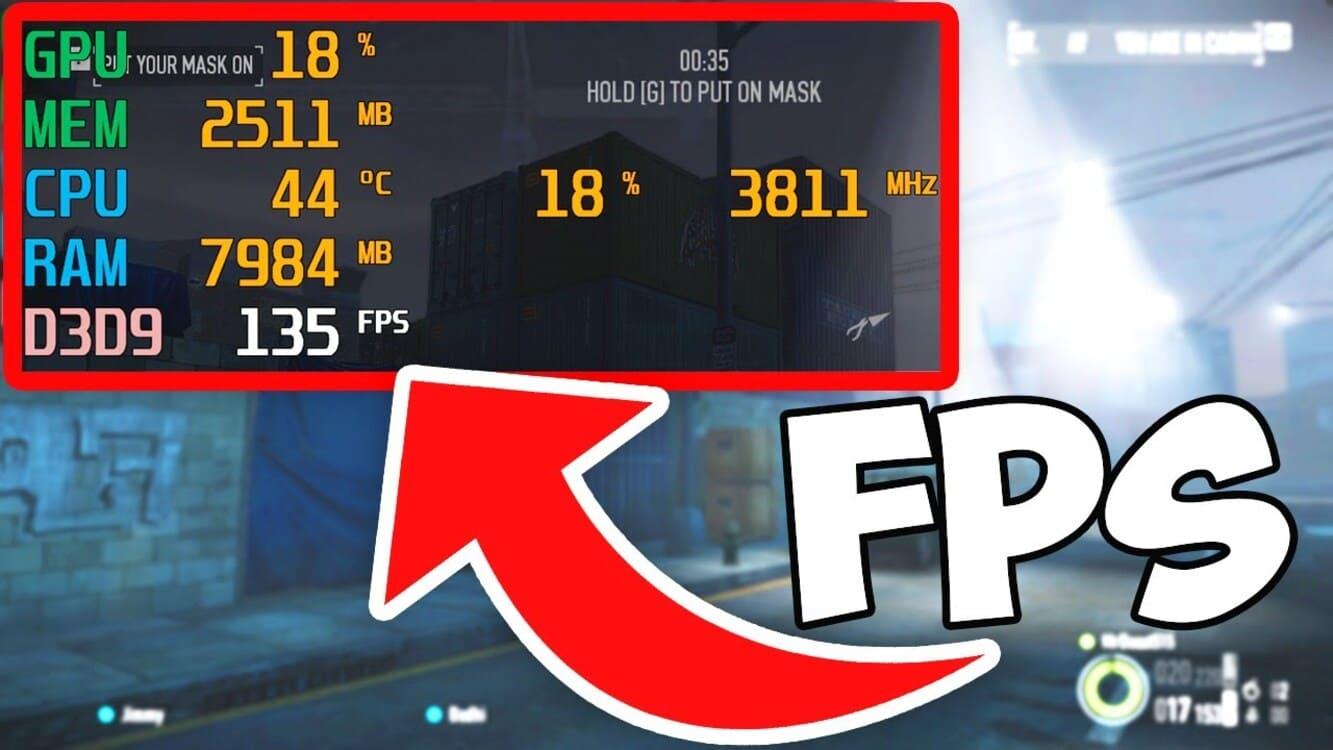

How To Check Your FPS In PC Games A Complete Guide Como Ver Los FPS En Tus Juegos De PC 1 . TOP 20 FPS Games With Crazy NEXT GEN GRAPHICS Coming In 2026 PS5 PC 1760470385 . TOP 7 Upcoming FPS Games Of 2026 Tactical Horror Realistic . FPS Calculator For Gaming Check Your PC Game Performance FPS. Top 10 INSANE Next Gen FPS Games Coming In 2026 Unreal Graphics 1765862829



How To Show FPS In Every Game FPS GPU And CPU Usage YouTube . Top 15 FPS Games Of 2026 Allkeyshop Top15 FI FPS 2026 EN 1024x575 . FPS Calculator Check Your Gaming FPS Before You Play How Much FPS Do I Actually Need. Best PC Settings For Path Of Exile 2 To Max FPS 2026 Best Valorant Settings For FPS In 2026 What Episode 11 Changed . How To Check FPS On PC Get FPS Counter On Windows 11 10 YouTube



How To Increase FPS In Any Game 2026 Master Guide PC Game Check . Best PC Settings For Rainbow Six Siege 2026 Max FPS Best Settings Rainbow Six Siege Fps . Top Tips To Improve Aim In FPS Games For All Players 2026 PrimeGlance Top Tips To Improve Aim In FPS Games For All Players 2026 2 . Best FPS Test Tool 2026 Online Frame Rate Checker Free FPS Testing Tool ChatGPT Image Aug 20 2025 02 28 29 PM.webp. How To Fix FPS Drops And Stuttering In PC Games 2026 Switchblade Gaming Fix Fps Drops Stuttering Cover.webp



How To ENABLE A FPS Counter In Any STEAM Game Easy Tutorial YouTube . Show FPS CS2 How To See FPS In CS2 Full Guide 2026 Show FPS Cs2 1. Top 15 FPS Games Of 2026 Allkeyshop Top15 FI FPS 2026 . Game Check For Pc At Jaxon Cockerill Blog Steam Fps Settings . Top 5 Tactical FPS To Master In 2026 AllKeyShop Com Top 5 Tactic FPS 2026.webp


Best PC Settings Cyberpunk 2077 2026 Max FPS Good Fps For Gaming . FPS Calculator Calculate Game FPS Fast Accurately Fix Fps Drops Rust 2026 . Video Game Fps Calculator At Felipe Heidt Blog . How To Display FPS Gpu Cpu Usage In Game How To Check FPS On PC YouTube . How To Test FPS In Games Easy Frame Rate Guide How To Test FPS In Games .webp



How To Show In Game FPS Counter On Any Game Steam Or Windows YouTube . C Mo Ver El Contador De FPS En La Beta Abierta De Battlefield 6 CORSAIR How To See FPS In Battlefield 6.width 1000.format Webp.webp. How To See FPS In Any Windows 10 Game Without Extra Software Xbox Game Bar Fps Meter . How To CHECK FPS On Roblox QUICK EASY YouTube . How To Show FPS In Steam Games Hone Blog Image 1024x586


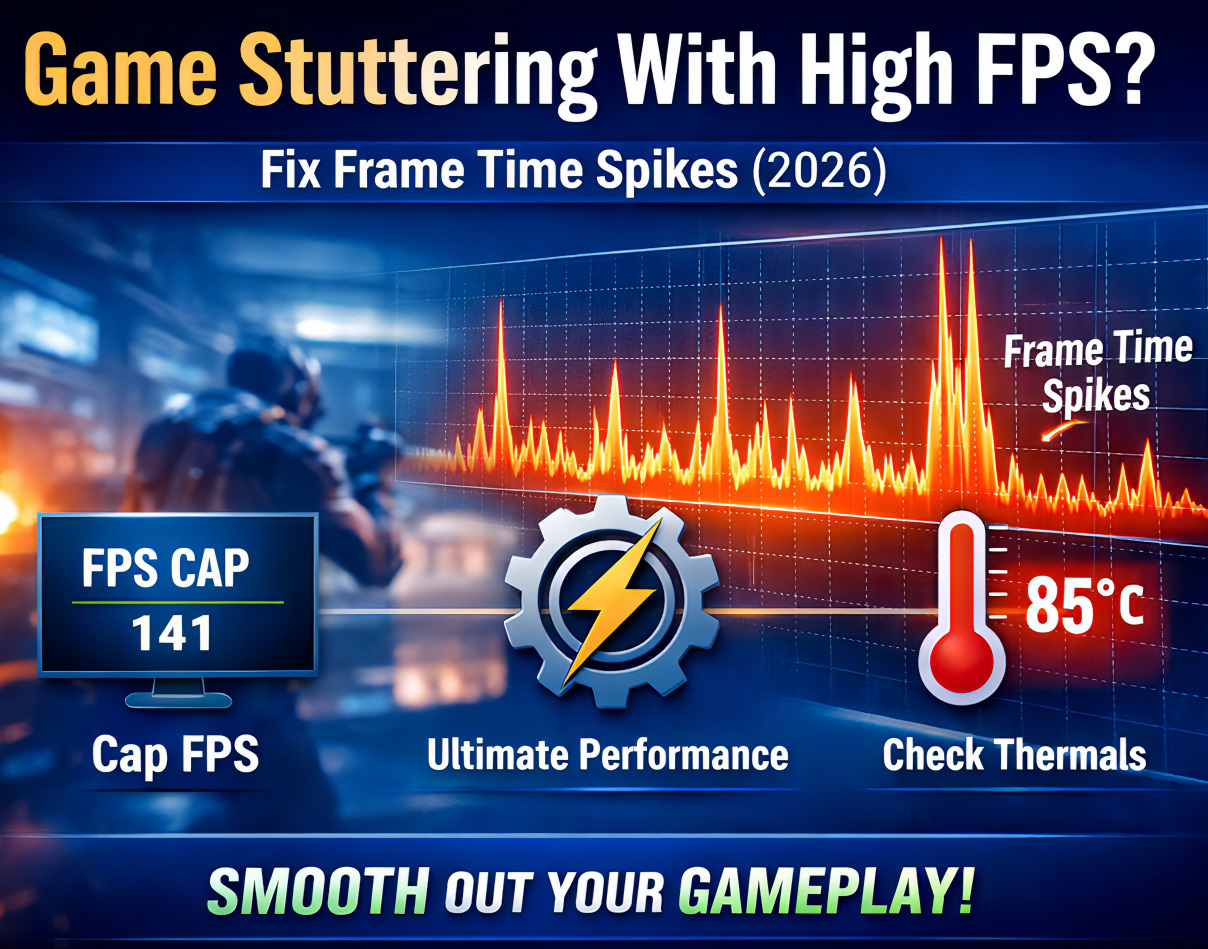
How To Show FPS In Games FPS GPU CPU Usage Temperature With . How To Show FPS On Steam Games Finally The Full Tutorial YouTube . How To Check Game FPS On Windows EASY STEPS YouTube . Roblox Hone Blog How To Check FPS In Roblox Show FPS . Stuttering At 144 FPS Fix It In 15 Minutes 3 Steps Fix Game Stuttering With High Fps